> ## Documentation Index
> Fetch the complete documentation index at: https://docs.erdo.ai/llms.txt
> Use this file to discover all available pages before exploring further.
# Data & Connectors
> Give your agents something to work on — upload files, connect your tools, bring your semantic layer, and trust that the answers are right.
Agents work on **your** data. Erdo's job is to understand the shape of that data,
let agents query it directly, and make sure the answers that come back are
actually correct. You bring data in from the **Data** section in a few ways.
 ## Upload a dataset
Drop in a file and it becomes a **dataset** your agents can query immediately:
* **Tabular** — CSV, Excel (`.xlsx`, `.xls`)
* **Documents** — PDF, Word, PowerPoint, Markdown, text, JSON, and more
Erdo analyzes every file the moment it lands, so agents reason over real
structure instead of guessing.
### What Erdo works out on upload
For tabular data, the analysis goes well beyond "read the first row as headers":
* **Schema & types** — every column is profiled and typed (number, date, text,
boolean), with null counts, distinct-value counts, and ranges.
* **Messy real-world files** — Erdo finds the *actual* header row in
report-style exports that start with titles, logos, or blank rows, and merges
multi-row headers (e.g. `Revenue / Q1`, `Revenue / Q2`) into clean column
names.
* **Number formats** — thousands separators, currency symbols, percentages, and
accounting-style negatives like `(1,234)` are recognised as numbers, not text.
* **Currencies** — an ambiguous `$` column is resolved using nearby
country/region columns where possible, so totals aren't silently mixed.
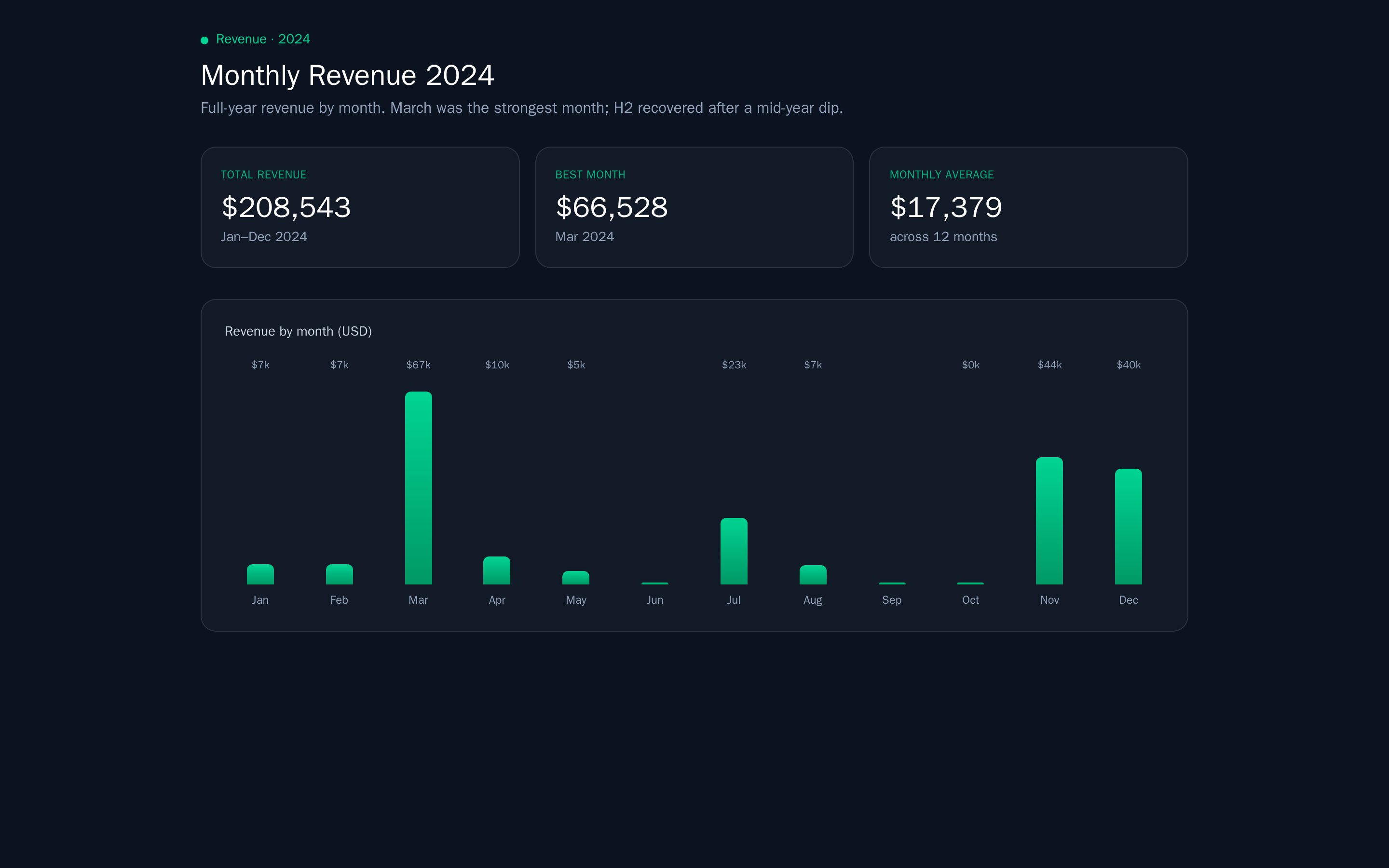
* **Time series** — date columns get their range and **gaps** detected, so an
agent knows when a month is missing before it reports a trend.
For documents, Erdo extracts the text and structure so agents can search,
summarise, and cite from them.
This upfront analysis is why an agent can answer a question about a freshly
uploaded file straight away — it already knows the columns, types, and quirks.
## Connect a source
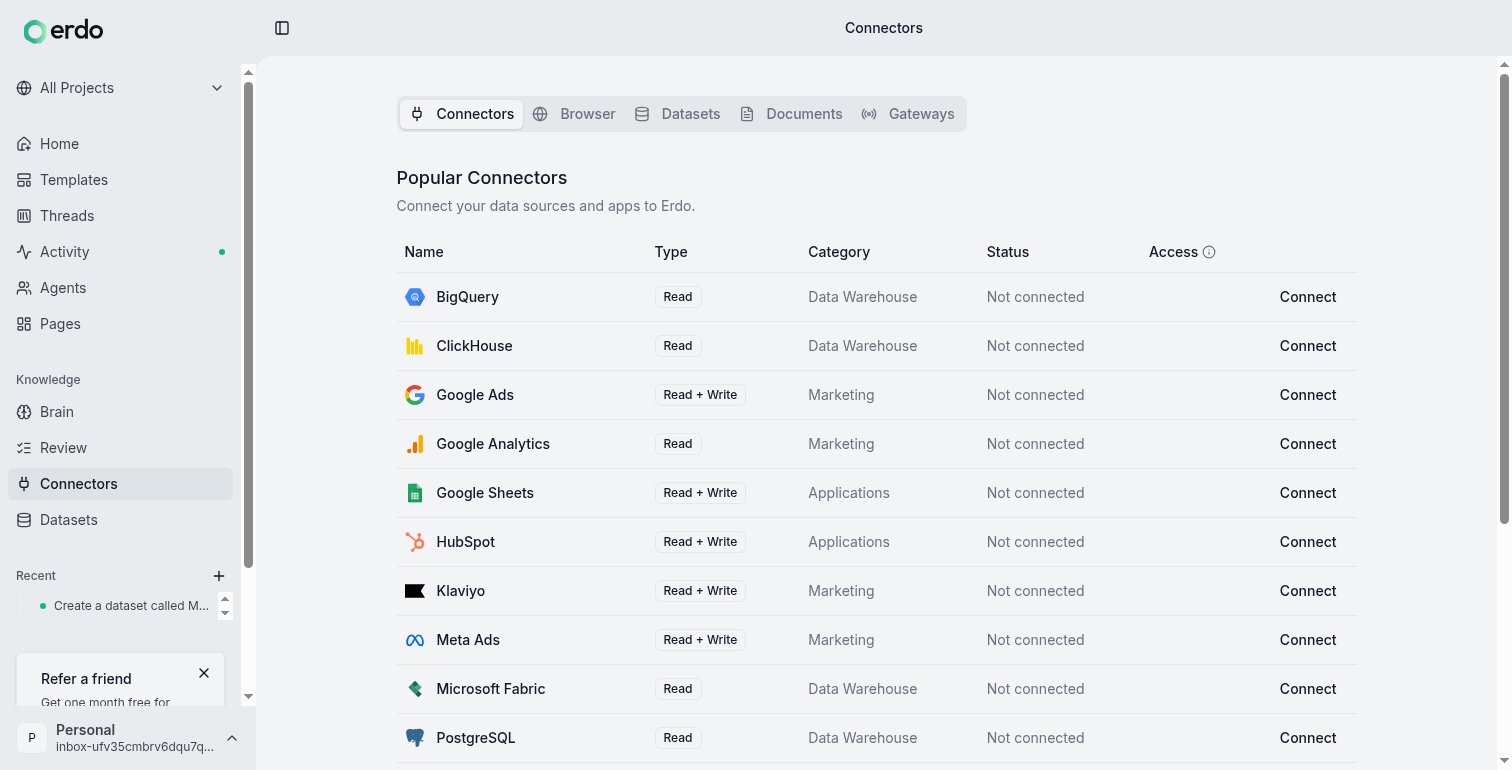
A **connector** is an authorized link to an external tool or system — your
database (PostgreSQL, Snowflake, BigQuery, ClickHouse), Google Workspace, Slack,
Shopify, Stripe, GitHub, and many others. Connecting one lets agents read from it
and, with your approval, act in it.
Connect **Meta Ads**, for instance, and agents can read across the account —
listing the Business Manager portfolios you belong to, the Facebook Pages available
for ad creatives, the conversion pixels already in place, and the Instant Forms on
a page along with the leads they've collected — while anything that changes the
account, such as creating a new pixel, uploading a video to the ad account's
library for a video ad, or creating an Instant Form for a lead ad, waits for your
approval first, as every Meta Ads write does.
Find the tool you want and click connect.
Authorize through the provider. Connections are **per user** and encrypted —
each person connects their own accounts.
Agents can now pull from the source. Sources that sync (like a database or a
store) turn their tables into queryable [datasets](#upload-a-dataset),
schema-analyzed just like an uploaded file.
**Dataset vs. connector:** a *connector* is the source (the authorized link); a
*dataset* is the queryable data that lands in Erdo. One connector can produce many
datasets. In day-to-day use you'll mostly think in terms of "connect Shopify" and
then "query my Shopify orders."
## Connect a data lake
If your data is **parquet files in object storage** (GCS or S3), connect it as a
[data lake](/data-lake) and Erdo queries it **in place** — no copy, no warehouse.
Each folder under your lake root becomes a queryable table.
## Connect a custom API
If a tool isn't in the gallery but has an API, point Erdo at its API docs and an
agent will generate a client for it. You then connect with your API key and query
it like any other source — no code to write yourself.
## Bring your semantic layer
If you've already defined your business model in **dbt**, **LookML (Looker)**,
**Power BI**, or **Tableau**, you don't have to redefine it in Erdo. Import the
model and Erdo turns it into [knowledge](/knowledge) your agents share:
* **Metrics** — measures and their formulas (revenue, ROAS, CAC) become canonical
definitions, so every agent computes them your way.
* **Entities & dimensions** — your business objects (campaigns, orders, customers)
and their fields, mapped back to the tables they live in.
* **Relationships** — join conditions between models are preserved, so agents know
how your tables connect.
* **Row-level security** — access filters from LookML carry over as mandatory
query constraints, so agents respect the same boundaries your BI tool does.
You review the import before anything becomes shared truth, and agents can propose
refinements over time. See [Knowledge](/knowledge) for how these definitions are
used.
## How agents query your data
You never write the query — you describe what you want, and the agent picks the
right path:
* **SQL** for direct questions over a dataset or synced table — fast filtering,
joins, and aggregation. Results come back as a new dataset you can query again.
* **Python** for multi-step analysis, statistics, and API-only sources (like
Google Analytics or ad platforms) where a single SQL query won't do.
When a connected source has been synced into Erdo, agents query the synced tables
directly rather than guessing at a provider's API — so answers come from your
real, current data.
## Getting answers right
This is where Erdo is different. An agent doesn't just run a query and report
whatever comes back — it **digs in and checks its own work** before showing you a
result:
## Upload a dataset
Drop in a file and it becomes a **dataset** your agents can query immediately:
* **Tabular** — CSV, Excel (`.xlsx`, `.xls`)
* **Documents** — PDF, Word, PowerPoint, Markdown, text, JSON, and more
Erdo analyzes every file the moment it lands, so agents reason over real
structure instead of guessing.
### What Erdo works out on upload
For tabular data, the analysis goes well beyond "read the first row as headers":
* **Schema & types** — every column is profiled and typed (number, date, text,
boolean), with null counts, distinct-value counts, and ranges.
* **Messy real-world files** — Erdo finds the *actual* header row in
report-style exports that start with titles, logos, or blank rows, and merges
multi-row headers (e.g. `Revenue / Q1`, `Revenue / Q2`) into clean column
names.
* **Number formats** — thousands separators, currency symbols, percentages, and
accounting-style negatives like `(1,234)` are recognised as numbers, not text.
* **Currencies** — an ambiguous `$` column is resolved using nearby
country/region columns where possible, so totals aren't silently mixed.
* **Time series** — date columns get their range and **gaps** detected, so an
agent knows when a month is missing before it reports a trend.
For documents, Erdo extracts the text and structure so agents can search,
summarise, and cite from them.
This upfront analysis is why an agent can answer a question about a freshly
uploaded file straight away — it already knows the columns, types, and quirks.
## Connect a source
A **connector** is an authorized link to an external tool or system — your
database (PostgreSQL, Snowflake, BigQuery, ClickHouse), Google Workspace, Slack,
Shopify, Stripe, GitHub, and many others. Connecting one lets agents read from it
and, with your approval, act in it.
Connect **Meta Ads**, for instance, and agents can read across the account —
listing the Business Manager portfolios you belong to, the Facebook Pages available
for ad creatives, the conversion pixels already in place, and the Instant Forms on
a page along with the leads they've collected — while anything that changes the
account, such as creating a new pixel, uploading a video to the ad account's
library for a video ad, or creating an Instant Form for a lead ad, waits for your
approval first, as every Meta Ads write does.
Find the tool you want and click connect.
Authorize through the provider. Connections are **per user** and encrypted —
each person connects their own accounts.
Agents can now pull from the source. Sources that sync (like a database or a
store) turn their tables into queryable [datasets](#upload-a-dataset),
schema-analyzed just like an uploaded file.
**Dataset vs. connector:** a *connector* is the source (the authorized link); a
*dataset* is the queryable data that lands in Erdo. One connector can produce many
datasets. In day-to-day use you'll mostly think in terms of "connect Shopify" and
then "query my Shopify orders."
## Connect a data lake
If your data is **parquet files in object storage** (GCS or S3), connect it as a
[data lake](/data-lake) and Erdo queries it **in place** — no copy, no warehouse.
Each folder under your lake root becomes a queryable table.
## Connect a custom API
If a tool isn't in the gallery but has an API, point Erdo at its API docs and an
agent will generate a client for it. You then connect with your API key and query
it like any other source — no code to write yourself.
## Bring your semantic layer
If you've already defined your business model in **dbt**, **LookML (Looker)**,
**Power BI**, or **Tableau**, you don't have to redefine it in Erdo. Import the
model and Erdo turns it into [knowledge](/knowledge) your agents share:
* **Metrics** — measures and their formulas (revenue, ROAS, CAC) become canonical
definitions, so every agent computes them your way.
* **Entities & dimensions** — your business objects (campaigns, orders, customers)
and their fields, mapped back to the tables they live in.
* **Relationships** — join conditions between models are preserved, so agents know
how your tables connect.
* **Row-level security** — access filters from LookML carry over as mandatory
query constraints, so agents respect the same boundaries your BI tool does.
You review the import before anything becomes shared truth, and agents can propose
refinements over time. See [Knowledge](/knowledge) for how these definitions are
used.
## How agents query your data
You never write the query — you describe what you want, and the agent picks the
right path:
* **SQL** for direct questions over a dataset or synced table — fast filtering,
joins, and aggregation. Results come back as a new dataset you can query again.
* **Python** for multi-step analysis, statistics, and API-only sources (like
Google Analytics or ad platforms) where a single SQL query won't do.
When a connected source has been synced into Erdo, agents query the synced tables
directly rather than guessing at a provider's API — so answers come from your
real, current data.
## Getting answers right
This is where Erdo is different. An agent doesn't just run a query and report
whatever comes back — it **digs in and checks its own work** before showing you a
result:
 * **Does this answer the question?** A separate quality check confirms the
analysis addresses what you actually asked — the right metric, the right grain,
the right time window — not a plausible-looking proxy.
* **Trust the data, not the assumption.** If the data disproves the obvious
approach (a join key that's empty, a column that doesn't exist, a filter that
returns nothing), the agent adapts and re-runs instead of forcing the original
plan.
* **Catch the silent failures.** Empty result sets, all-zero or all-null columns,
suspiciously small counts, and contradictory totals are flagged and
investigated rather than presented as fact.
* **Decision-quality verdicts.** For "did this work?" questions — experiments,
launches, funnels — Erdo insists on comparable before/after windows and a real
primary outcome, so a rise in vanity activity doesn't get reported as success.
* **Validated refreshes.** When a synced dataset refreshes, Erdo checks
invariants like key uniqueness so a broken sync doesn't quietly corrupt later
answers.
The result: agents that double-check, correct course, and tell you when something
doesn't add up — instead of confidently returning the wrong number.
## Tables and scratch datasets
Not every dataset is meant to stick around. Erdo distinguishes two kinds:
* **Tables** are the durable datasets your flows and uploads write to — your
leads, your campaign metrics, a file you brought in. They're the data you come
back to, so they're what listings show by default.
* **Scratch datasets** are analysis by-products: the intermediate result of a
question an agent worked through, a one-off export, a `sql_results` file. They
pile up fast and you rarely need them later, so they're **hidden from dataset
listings by default** to keep the durable data easy to find.
Nothing is deleted — scratch datasets are just out of the way. When you want to
see them, ask for all classes: over the API and MCP, pass `class=all` (or
`class=scratch` for only the by-products); on the CLI, `erdo datasets list --class all`. A dataset you address directly by slug always opens regardless of
its class.
Integration-backed tables also carry their source connection in dataset-list
responses (`integration_id` and `integration_config_key`) plus their current
`sync_status`. External consumers can therefore discover, for example, the
tables produced by a connected source without guessing a dataset name or slug.
The fields are generic provenance: the dataset API does not grow separate
campaign, ad, invoice, or contact endpoints.
For a dataset with several tables, read its schema and pass the selected
resource's `key` as `resource_key` to the ordinary dataset query. For file
datasets (CSV/Excel), the SQL table is named `data`; for synchronized API
integration datasets, the SQL table name matches the resource name (e.g.
`campaigns`, `orders`).
The class isn't fixed: if a durable table was mistakenly filed as scratch (or the
reverse), pass `class` (`table` or `scratch`) to the update-schema surface —
`POST /v1/datasets/{id}/schema` or the `update_dataset_schema` tool — to
reclassify it; omit it to leave the class unchanged.
## Declared schemas
A table can carry a **declared schema** — a column contract that says which
columns the table has, which are required, and what type each holds. It exists so
that anything reading the table (your app, a report, another agent) can read the
column list once from the schema instead of guessing at names, and so writes stay
consistent instead of quietly growing a new column every time a payload changes.
A table's schema is set the first time it receives data — the columns of that
first batch become the contract — and you can declare or change it explicitly at
any point. Ask the agent, or use the schema tool directly: a `declare_schema`
operation replaces the whole contract, and `add_column` / `rename_column` /
`remove_column` / `alter_column_type` evolve it a column at a time. The declared
schema is returned alongside a dataset's columns on the schema endpoint
(`GET /v1/datasets/{id}/schema` and the `get_dataset_schema` tool).
Once a table has a declared schema, writes are held to it — but how a mismatch is
handled depends on where the write comes from, because dropping a real submission
is never acceptable:
* **API and agent writes** with columns the table doesn't declare, or missing a
required column, are **rejected** — the error names the offending columns so you
can add them to the schema (`add_column`, or a new `declare_schema`) and retry.
This keeps deliberate writes from silently drifting the schema.
* **Form and event captures** (a landing-page lead form, an event pipeline) are
**never dropped**: the record is written as submitted even if it doesn't match,
and the mismatch is recorded on the dataset's timeline as an event naming the
columns that drifted. You keep every lead and still get told the schema moved.
Tables without a declared schema — and scratch datasets — accept whatever columns
you write, exactly as before.
## Filtering what shows up
A **filter** is a saved rule on a dataset that hides rows you don't want to see by
default. Once you add one, it applies everywhere that dataset is read — lead lists,
dashboards, public pages, and the agent's own queries — including counts and totals,
not just the row list.
Filters are the right tool whenever a dataset accumulates rows you'd rather not look
at by default. The most common case: keeping **test and QA submissions** out of a
landing page's real leads — you capture everything, then filter out the test rows by a
value they share (a test email, a flag, a source). Other uses: hide a status
(`status` is `archived`), or scope to a window (`created_at` after a date).
You don't manage filters by hand — just ask:
> "Add a filter to the leads dataset to hide submissions from anyone testing — their
> emails all end in `@example.com`."
The agent adds the filter (you can also list or remove them), and from then on every
view of that dataset excludes those rows. Need to see everything again — including the
filtered rows — for a one-off check? Ask the agent to query with filters off, or remove
the filter. Filters hide rows from view; they never delete anything.
You can also manage filters yourself — in a dataset's settings, or from the CLI, MCP, and
REST API. See [Filters](/filters) for every way to add, list, and remove them.
Some sources also let you scope what comes in right in the segment picker when you connect,
and where a source is hierarchical Erdo groups those choices by the container that owns them.
Connect **Meta Ads**, for instance, and you choose one ad account for the connection, with
each account listed under the Business Manager that owns it — accounts outside any business
appear under a "Personal" group. Erdo remembers the owning business alongside the account, and the
connection is named after your choice. Working across several ad accounts is just several
connections: connect Meta Ads once per account.
## Who can see what
Data access follows your organization's permissions. Connections are private to
the person who made them; datasets are shared according to your workspace's
sharing rules. Agents only ever see data the acting user is allowed to see.
* **Does this answer the question?** A separate quality check confirms the
analysis addresses what you actually asked — the right metric, the right grain,
the right time window — not a plausible-looking proxy.
* **Trust the data, not the assumption.** If the data disproves the obvious
approach (a join key that's empty, a column that doesn't exist, a filter that
returns nothing), the agent adapts and re-runs instead of forcing the original
plan.
* **Catch the silent failures.** Empty result sets, all-zero or all-null columns,
suspiciously small counts, and contradictory totals are flagged and
investigated rather than presented as fact.
* **Decision-quality verdicts.** For "did this work?" questions — experiments,
launches, funnels — Erdo insists on comparable before/after windows and a real
primary outcome, so a rise in vanity activity doesn't get reported as success.
* **Validated refreshes.** When a synced dataset refreshes, Erdo checks
invariants like key uniqueness so a broken sync doesn't quietly corrupt later
answers.
The result: agents that double-check, correct course, and tell you when something
doesn't add up — instead of confidently returning the wrong number.
## Tables and scratch datasets
Not every dataset is meant to stick around. Erdo distinguishes two kinds:
* **Tables** are the durable datasets your flows and uploads write to — your
leads, your campaign metrics, a file you brought in. They're the data you come
back to, so they're what listings show by default.
* **Scratch datasets** are analysis by-products: the intermediate result of a
question an agent worked through, a one-off export, a `sql_results` file. They
pile up fast and you rarely need them later, so they're **hidden from dataset
listings by default** to keep the durable data easy to find.
Nothing is deleted — scratch datasets are just out of the way. When you want to
see them, ask for all classes: over the API and MCP, pass `class=all` (or
`class=scratch` for only the by-products); on the CLI, `erdo datasets list --class all`. A dataset you address directly by slug always opens regardless of
its class.
Integration-backed tables also carry their source connection in dataset-list
responses (`integration_id` and `integration_config_key`) plus their current
`sync_status`. External consumers can therefore discover, for example, the
tables produced by a connected source without guessing a dataset name or slug.
The fields are generic provenance: the dataset API does not grow separate
campaign, ad, invoice, or contact endpoints.
For a dataset with several tables, read its schema and pass the selected
resource's `key` as `resource_key` to the ordinary dataset query. For file
datasets (CSV/Excel), the SQL table is named `data`; for synchronized API
integration datasets, the SQL table name matches the resource name (e.g.
`campaigns`, `orders`).
The class isn't fixed: if a durable table was mistakenly filed as scratch (or the
reverse), pass `class` (`table` or `scratch`) to the update-schema surface —
`POST /v1/datasets/{id}/schema` or the `update_dataset_schema` tool — to
reclassify it; omit it to leave the class unchanged.
## Declared schemas
A table can carry a **declared schema** — a column contract that says which
columns the table has, which are required, and what type each holds. It exists so
that anything reading the table (your app, a report, another agent) can read the
column list once from the schema instead of guessing at names, and so writes stay
consistent instead of quietly growing a new column every time a payload changes.
A table's schema is set the first time it receives data — the columns of that
first batch become the contract — and you can declare or change it explicitly at
any point. Ask the agent, or use the schema tool directly: a `declare_schema`
operation replaces the whole contract, and `add_column` / `rename_column` /
`remove_column` / `alter_column_type` evolve it a column at a time. The declared
schema is returned alongside a dataset's columns on the schema endpoint
(`GET /v1/datasets/{id}/schema` and the `get_dataset_schema` tool).
Once a table has a declared schema, writes are held to it — but how a mismatch is
handled depends on where the write comes from, because dropping a real submission
is never acceptable:
* **API and agent writes** with columns the table doesn't declare, or missing a
required column, are **rejected** — the error names the offending columns so you
can add them to the schema (`add_column`, or a new `declare_schema`) and retry.
This keeps deliberate writes from silently drifting the schema.
* **Form and event captures** (a landing-page lead form, an event pipeline) are
**never dropped**: the record is written as submitted even if it doesn't match,
and the mismatch is recorded on the dataset's timeline as an event naming the
columns that drifted. You keep every lead and still get told the schema moved.
Tables without a declared schema — and scratch datasets — accept whatever columns
you write, exactly as before.
## Filtering what shows up
A **filter** is a saved rule on a dataset that hides rows you don't want to see by
default. Once you add one, it applies everywhere that dataset is read — lead lists,
dashboards, public pages, and the agent's own queries — including counts and totals,
not just the row list.
Filters are the right tool whenever a dataset accumulates rows you'd rather not look
at by default. The most common case: keeping **test and QA submissions** out of a
landing page's real leads — you capture everything, then filter out the test rows by a
value they share (a test email, a flag, a source). Other uses: hide a status
(`status` is `archived`), or scope to a window (`created_at` after a date).
You don't manage filters by hand — just ask:
> "Add a filter to the leads dataset to hide submissions from anyone testing — their
> emails all end in `@example.com`."
The agent adds the filter (you can also list or remove them), and from then on every
view of that dataset excludes those rows. Need to see everything again — including the
filtered rows — for a one-off check? Ask the agent to query with filters off, or remove
the filter. Filters hide rows from view; they never delete anything.
You can also manage filters yourself — in a dataset's settings, or from the CLI, MCP, and
REST API. See [Filters](/filters) for every way to add, list, and remove them.
Some sources also let you scope what comes in right in the segment picker when you connect,
and where a source is hierarchical Erdo groups those choices by the container that owns them.
Connect **Meta Ads**, for instance, and you choose one ad account for the connection, with
each account listed under the Business Manager that owns it — accounts outside any business
appear under a "Personal" group. Erdo remembers the owning business alongside the account, and the
connection is named after your choice. Working across several ad accounts is just several
connections: connect Meta Ads once per account.
## Who can see what
Data access follows your organization's permissions. Connections are private to
the person who made them; datasets are shared according to your workspace's
sharing rules. Agents only ever see data the acting user is allowed to see.